Add New Broadcast
Overview
Please make sure you have read the broadcast information. More info here.
NOTE: If a message is added to more than 1 campaign, the SMTP settings used will be for the first campaign
NOTE: If a message is added to more than 1 campaign, the SMTP settings used will be for the first campaign
General » Message Name/Ref
Enter message or reference name/code. For backend ops only.
General » Email Subject
Enter email subject. Click the icon to view personalisation tags.
General » Message Body - HTML Version
Required if HTML emails are enabled. Enter html version of message. If you have the Wysiwyg editor enabled, use the buttons provided
to format the code. See below.
View Tags - Click to view personalisation tags. You can also add custom tags. Note that for the HTML email, DO NOT wrap the tags in HTML link tags. Just the tag variables as shown. Please see the note below about the %browser_view% tag.
Manage Templates - Click to open the template manager window. Here you can save, load or delete templates.
Tracking Links - Click to show tracking links. Use box to search tracking links for tracking code.
Preview HTML Email - Click to show preview of the HTML email. Note that tags will not be parsed in the preview and multimedia content may not view the same due to formatting. It is recommended you sent a test email to yourself to fully test the HTML messages. If the message is enabled a send button will appear at the top of the preview.
HTML messages can be disabled in the settings
More info on the Wysiwyg functions here.
View Tags - Click to view personalisation tags. You can also add custom tags. Note that for the HTML email, DO NOT wrap the tags in HTML link tags. Just the tag variables as shown. Please see the note below about the %browser_view% tag.
Manage Templates - Click to open the template manager window. Here you can save, load or delete templates.
Tracking Links - Click to show tracking links. Use box to search tracking links for tracking code.
Preview HTML Email - Click to show preview of the HTML email. Note that tags will not be parsed in the preview and multimedia content may not view the same due to formatting. It is recommended you sent a test email to yourself to fully test the HTML messages. If the message is enabled a send button will appear at the top of the preview.
HTML messages can be disabled in the settings
More info on the Wysiwyg functions here.
Optional WYSIWYG Editor
If enabled, a Wysiwyg editor is shown for the HTML email textarea. This enables you to easily format HTML messages. See the following
animation for a few examples.
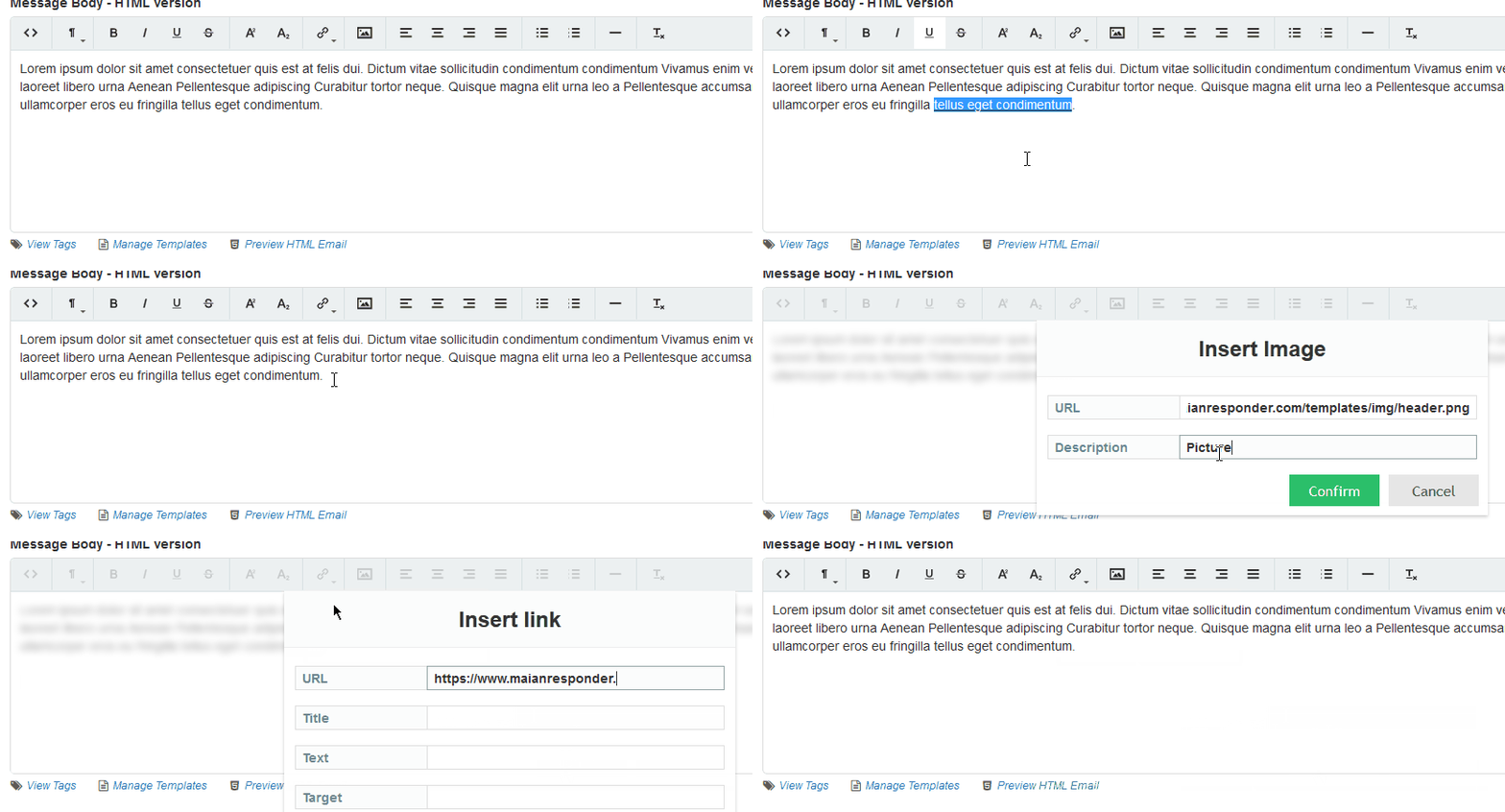
To enter raw HTML, click the <> button. Note that for security, <script> tags are NOT allowed.
More info on the Wysiwyg functions here.
To enter raw HTML, click the <> button. Note that for security, <script> tags are NOT allowed.
More info on the Wysiwyg functions here.
Expand Textarea
Clicking the small crosshair, top right, in any textarea will expand the area giving you more room to type.

Note: If the Wysiwyg editor is enabled, this will have it's own full screen option.
Note: If the Wysiwyg editor is enabled, this will have it's own full screen option.
General » Message Body - Plain Text Version
REQUIRED. Enter plain text version of message.
View Tags - Click to view personalisation tags. Please see the note below about the %browser_view% tag.
Manage Templates - Click to open the template manager window. Here you can save, load or delete templates.
Tracking Links - Click to show tracking links. Use box to search tracking links for tracking code.
Create from HTML - Auto parses html text into plain text (only shown if HTML emails are ON). Note that certain unicode characters may not convert correctly, so check. Also, formatting on plain text may not be 100% as this feature is experimental.
Plain text messages can be more reliable that HTML emails as they don't cause as many issues as HTML emails with spam blockers. Plain text messages must always be included.
View Tags - Click to view personalisation tags. Please see the note below about the %browser_view% tag.
Manage Templates - Click to open the template manager window. Here you can save, load or delete templates.
Tracking Links - Click to show tracking links. Use box to search tracking links for tracking code.
Create from HTML - Auto parses html text into plain text (only shown if HTML emails are ON). Note that certain unicode characters may not convert correctly, so check. Also, formatting on plain text may not be 100% as this feature is experimental.
Plain text messages can be more reliable that HTML emails as they don't cause as many issues as HTML emails with spam blockers. Plain text messages must always be included.
General » Enable Message
Enables or disables broadcast message.
General » Auto Delete Broadcast Message on Completion
If this is enabled, the broadcast message will auto delete after it has completed it's run. If you enable this
after the broadcast has run it will have no affect and the message should be removed manually.
Campaigns
Choose which campaigns will trigger this message. If no campaigns are
selected, message is added to all campaigns by default.
Search Attachments To Include With Message
If applicable, select attachments you wish to include with this message. Use the search box to locate attachments. Search requires min 3 characters
and searches attachment name and file name.
When an attachment is selected you can use the download option to download the attachment or if it is an image type you can use the quick preview option by clicking the image type. eg: PNG, JPG etc.

When an attachment is selected you can use the download option to download the attachment or if it is an image type you can use the quick preview option by clicking the image type. eg: PNG, JPG etc.
Send » Send Date/Time
Start Sending On XXXX-XX-XX @ XX:XX - Specify the date/time that the message should start sending. If this is left blank, it will default to 5 mins from the current date/time (can be adjusted in "control/options.php"). Note that
the send time is actually governed by the time you have your cron job running. The message is actually queued to be sent the next time the cron runs. So, for example, if you set a time of 12:30 and your cron is running hourly, the message will
actually be sent at 13:00.
Send » Subscribers
Send Only to First X Subscribers - Sends message to first x subscribers only. Useful if you only want to send special offers to your first set of
subscribers in each campaign.
or Send Only to Subscribers Who Joined Between - Send message only to subscribers who joined between a given date range.
or Send Only to Subscribers Who Joined Between - Send message only to subscribers who joined between a given date range.
Send Test
Click the icon to send a test message to make sure your smtp settings are working correctly. You can enter multiple addresses separated
with a comma and choose any autoresponder smtp settings to test.
%browser_view% Tag
If used the %browser_view% tag creates a link in emails where subscribers can view the HTML version of the message in their browser. This tag is removed when the person views
the message in the browser as it is not needed anymore.
The HTML version is wrapped in a new wrapper located at:
content/browser-view-wrapper.php
You may edit this if you wish. Note that if your message contains <body> tags, the only part of the message that loads in the browser view is what is between these tags, other data is ignored. Finally, this tag should only be included in the messages.
The HTML version is wrapped in a new wrapper located at:
content/browser-view-wrapper.php
You may edit this if you wish. Note that if your message contains <body> tags, the only part of the message that loads in the browser view is what is between these tags, other data is ignored. Finally, this tag should only be included in the messages.